
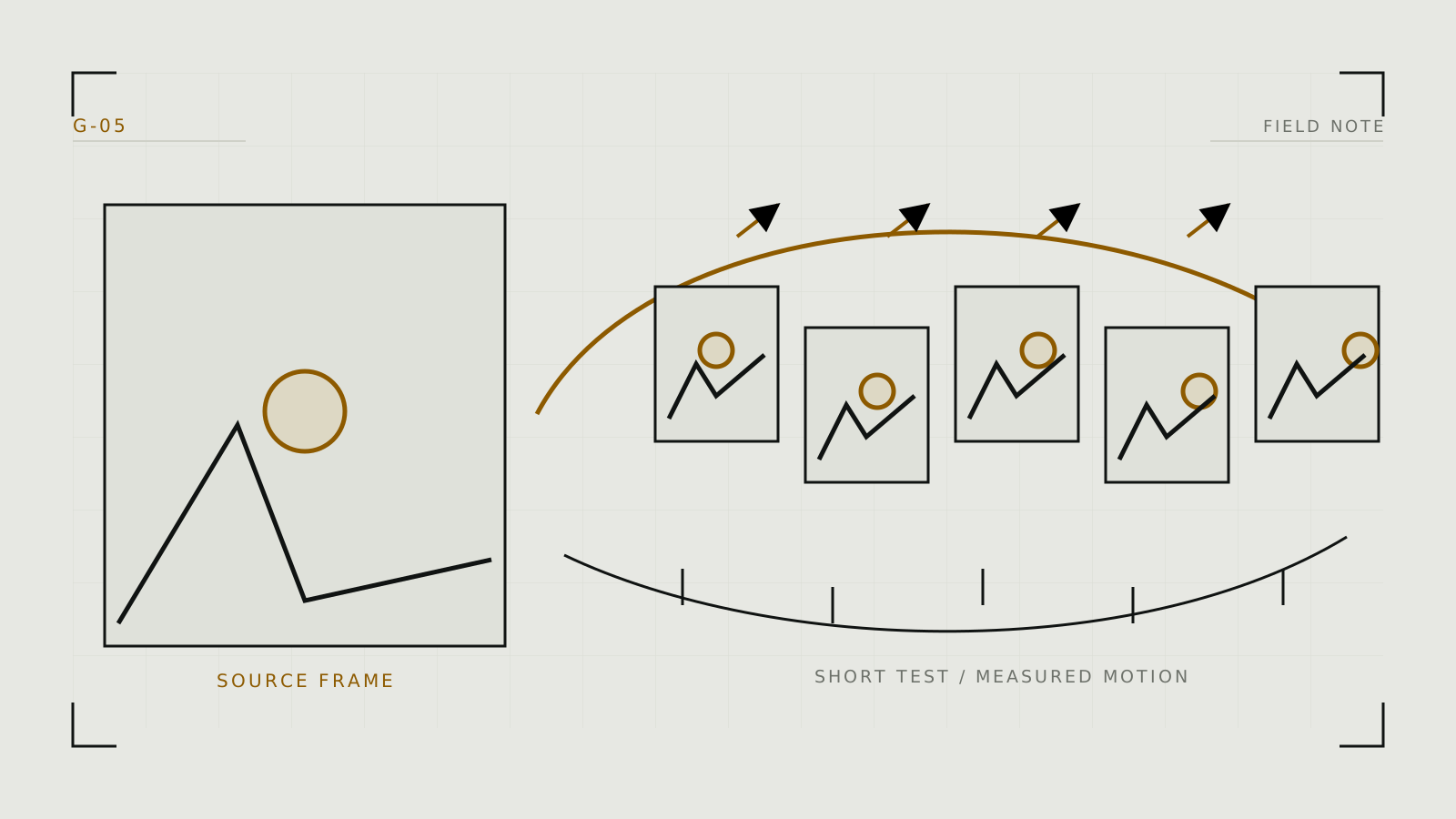
Choose a source frame that can move
Image-to-video treats the supplied image as the visual starting condition. Use a frame with a clear subject, readable silhouette, coherent anatomy, and enough room for the intended movement. Crop out broken hands, impossible overlaps, stray objects, and ambiguous boundaries before animation; video tends to make those uncertainties move rather than repair them.
Match the source aspect ratio to the intended output. Leave space in the direction of movement, and avoid a tightly cropped face when the requested camera move needs background information. If the identity already drifts between stills, solve that with the character-consistency workflow before adding time.
Prompt motion, not a second still image
The image already supplies subject, wardrobe, environment, composition, and style. The prompt should concentrate on subject motion, environmental motion, camera behavior, timing, and shot character. For example, specify that the subject turns slightly while hair moves in a light breeze and the camera makes a slow push-in. Keep the number of simultaneous actions small.
Runway's official guidance notes that motion instructions should agree with visible cues in the source. A frame with strong motion blur or flying debris already implies movement; asking for a perfectly motionless scene creates conflicting signals.
Generate the smallest useful test
- Start short. A brief shot is easier to inspect and less time for identity or anatomy to drift.
- Use one camera idea. Static, slow push, pan, or orbit is clearer than stacking several moves.
- Keep subject motion restrained. Prove a head turn or posture shift before attempting complex full-body action.
- Generate a few variants. Compare motion quality rather than assuming the first seed represents the model.
- Save the prompt and source. Platform versions can change; preserve the actual ingredients used.
Hosted systems such as Runway package this workflow. ComfyUI can run local or connected video workflows with explicit nodes, but model files, frame dimensions, and VRAM needs vary substantially.
Inspect motion frame by frame
Watch once at normal speed, then scrub for the first frame where the face, hands, clothing edges, or background geometry break. A clean first second followed by drift suggests the duration or motion demand is too ambitious. A jump at the start suggests the source and requested first action conflict.
Use frame interpolation to smooth an already coherent motion sequence, not to repair identity changes or invented limbs. If a clip fails, match the symptom to the AI video diagnostic guide.
Extend clips without multiplying errors
Choose a clean terminal keyframe as the next source rather than extending from a visibly damaged frame. Keep camera direction and lighting continuous, and change one motion instruction at a time. For a multi-shot sequence, it is often more reliable to generate separate short shots and edit them together than to demand one long continuous performance.
All source-image consent rules continue to apply after animation. Do not animate a real person's likeness into sexual content without their specific agreement. Hosted uploads should be checked against the image-upload privacy checklist.
Technical context
A source image anchors appearance but cannot specify hidden geometry or guarantee identity through motion.