
There is no single local-AI VRAM number
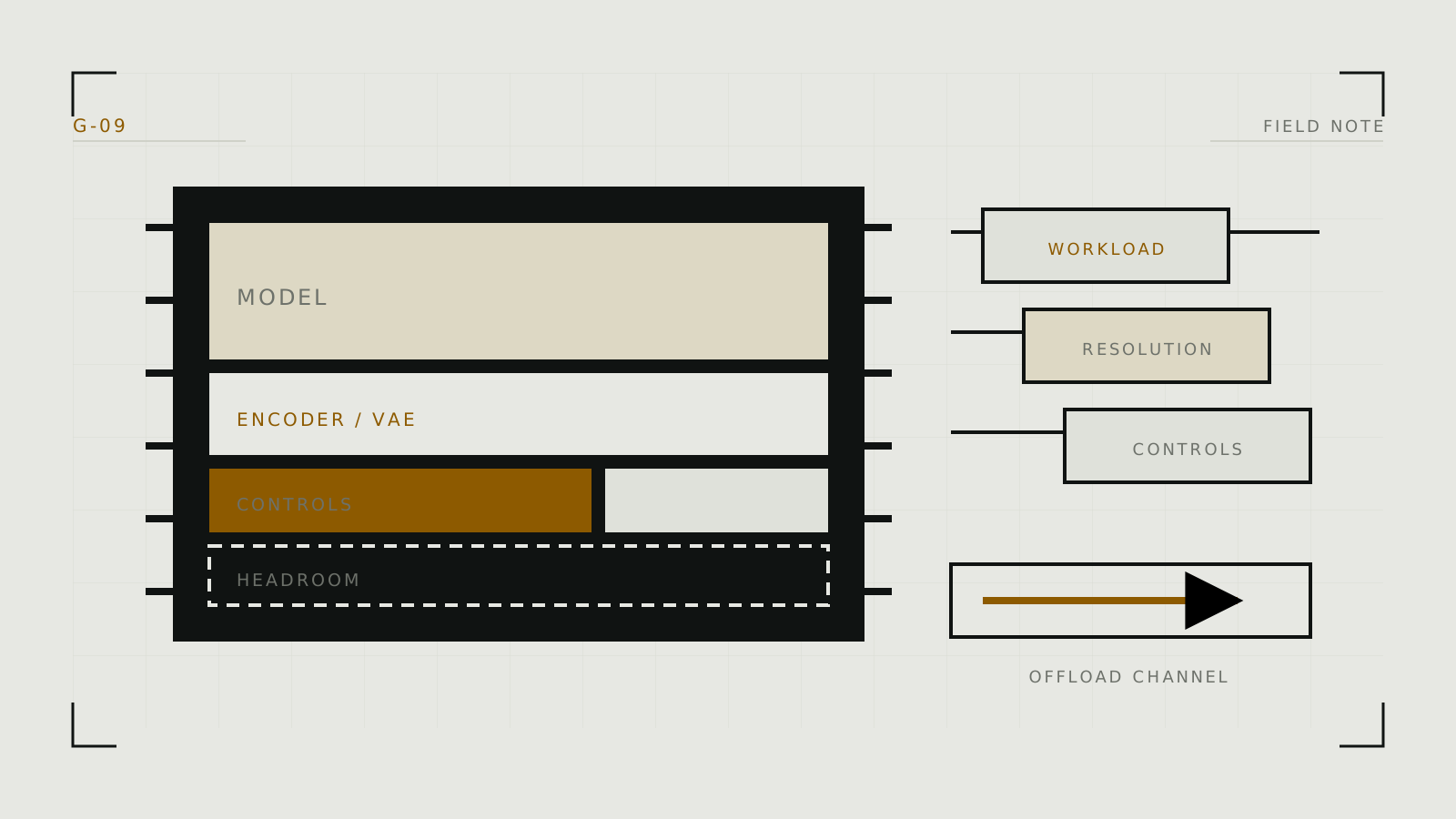
VRAM holds model weights, intermediate activations, attention data, image or video latents, and temporary buffers during GPU inference. The peak changes with model architecture and numerical precision, image dimensions, frame count, batch size, enabled adapters, VAE behavior, and application memory management.
A claim that a tool “runs in 8 GB” is incomplete unless it names the model, precision, resolution, batch, optimizations, and acceptable speed. Treat published minimums as a starting condition, not a promise for every workflow.
Build a workload specification
- Name the model and task. Still-image inference, video inference, LoRA training, and local chat have different peaks.
- Record weight precision. Lower precision or quantization can reduce memory, with model-dependent compatibility and quality trade-offs.
- Set output shape. Image width and height, video frames, and batch size materially affect working memory.
- Add pipeline components. Text encoders, VAEs, ControlNets, LoRAs, and upscalers may be resident or loaded in stages.
- Leave operating headroom. The display, browser, desktop applications, and allocator fragmentation also use GPU memory.
Test before buying or expanding
Use the exact interface and model. Start at the model's recommended resolution with batch size one and no optional adapters. Monitor peak allocated or reserved GPU memory, not only the idle reading. Then add the real workload one dimension at a time: resolution, batch, ControlNet, hires pass, or video frames.
ComfyUI, Forge, and AUTOMATIC1111 use different memory strategies and defaults, so a result in one should not be copied blindly to another. Keep a test prompt and seed so software updates can be compared against the same baseline.
What to do when the workload does not fit
- Reduce batch size first; this usually preserves single-image quality.
- Reduce resolution or frame count and upscale later if that serves the output.
- Use a supported lower-precision or quantized model variant.
- Enable documented model offloading so inactive components wait in system RAM.
- Use VAE tiling or slicing where the interface and model support it.
- Close GPU-heavy applications and leave allocator headroom.
- Choose a smaller model family when offloading makes generation impractically slow.
Hugging Face documents a core trade-off: more aggressive CPU offloading can save more GPU memory but adds transfers and can become much slower. Model-level offloading is generally faster than moving small submodules repeatedly, though it saves less memory.
Image, video and local chat differ
Video adds a temporal dimension: more frames and larger frames can raise working memory sharply, and modern video models may also have much larger weights. Local chat loads LLM weights and a KV cache that grows with active context length. Tools such as KoboldCpp and LM Studio can split or offload layers, but performance depends on GPU, CPU, memory bandwidth, model format, quantization, and context.
Buy or allocate for the workload you will repeat, with headroom for modest growth. If the choice is between a larger model that constantly spills to CPU and a smaller model that runs fully on GPU, test both: the smaller model may provide the better practical workflow.
Technical context
Identify what occupies memory before interpreting a VRAM measurement; image latents and LLM caches scale differently.